

What Is RAID & What Is the Optimal RAID for My Use Case?
What is a RAID array?
A RAID array is a group of physical drives — hard drives or SSDs — combined into one logical volume that the operating system sees as a single disk. RAID stands for Redundant Array of Independent Disks: instead of relying on one drive, the array spreads or copies data across several, so the system can read and write faster, keep running when a drive fails, or both.
How the array behaves depends on its RAID level. Striping (RAID 0) splits data across drives for speed; mirroring (RAID 1) keeps identical copies for safety; parity levels (RAID 5 and 6) store recovery information so the array survives one or two drive failures without doubling your drive count; nested levels (RAID 10, 50, 60) combine two of those ideas in one array. A RAID array can be built with a dedicated hardware controller or in software by the operating system.
Below we break down the common RAID types — 0, 1, 5, 6, 10, 50 and 60 — and which one is optimal for your use case. Want numbers instead of theory? Our free RAID calculator shows usable capacity, IOPS, rebuild time and failure risk for any drive combination as you type.
Understanding RAID Types & Levels
What is RAID 0? (Striping)
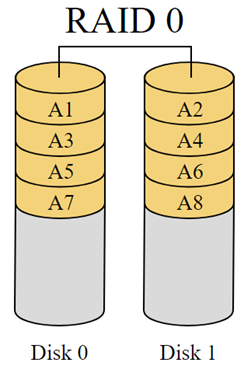
RAID 0 stripes data across every drive in the array. Reads and writes are split between disks, so throughput scales with drive count — but there is no redundancy at all. If any single drive fails, the whole array and everything on it is lost.
Minimum drives: 2
Maximum drives: no hard limit, though performance gains taper off as you add disks.
Best for: speed-first workloads where the data is expendable or backed up elsewhere — video-editing scratch space, render caches, gaming builds.
Positives:
- Fastest read and write speeds of any RAID level.
- 100% of drive capacity is usable.
Negatives:
- Zero fault tolerance — one failed drive destroys the array, and every added drive increases that risk.
What is RAID 1? (Mirroring)
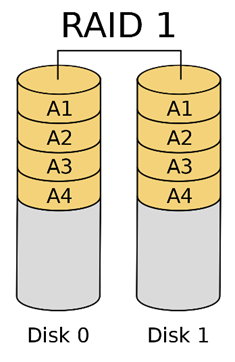
RAID 1 writes identical copies of your data to two (or more) drives. If one fails, the system keeps running on the survivor; install a replacement and the mirror rebuilds automatically. The trade-off is capacity — you get the space of one drive, not two.
Minimum drives: 2
Maximum drives: usually 2; some controllers support multi-way mirrors.
Best for: OS and boot volumes, small file shares, any system where uptime matters more than capacity.
Positives:
- Simple, dependable redundancy — data survives a drive failure with no rebuild math.
- Fast rebuilds: data is copied straight from the surviving mirror.
Negatives:
- Only half the total drive capacity is usable.
- Write speed is limited by the slower disk in the pair.
What is RAID 5? (Striping with Parity)
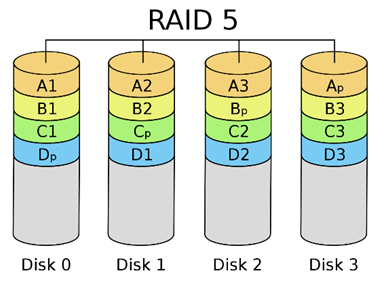
RAID 5 stripes data across all drives and spreads one drive’s worth of parity information among them. If a drive fails, the missing data is rebuilt from parity onto the replacement. It sits between RAID 0 speed and RAID 1 safety, which is why it’s the classic general-purpose choice.
Minimum drives: 3
Maximum drives: no hard limit, but rebuilds get longer and riskier as the array grows.
Best for: general-purpose servers, medium file shares, read-heavy databases.
Positives:
- Good balance of performance, capacity and protection.
- Efficient — only one drive’s worth of space goes to parity.
Negatives:
- Writes pay a parity-calculation penalty.
- Rebuilds on large drives are slow and stressful — a second failure mid-rebuild loses the array.
What is RAID 6? (Striping with Double Parity)
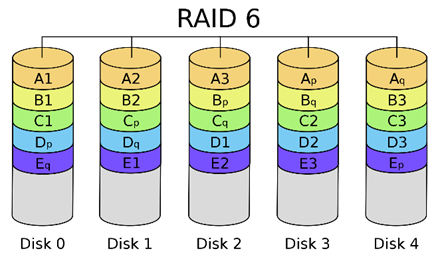
RAID 6 works like RAID 5 but keeps two independent parity blocks, so the array survives two simultaneous drive failures — including the common worst case of a second drive dying during a rebuild. The extra protection costs one more drive of capacity and a bigger write penalty.
Minimum drives: 4
Maximum drives: no hard limit; large arrays are exactly where the second parity block earns its keep.
Best for: big arrays built on high-capacity drives, archives, backup targets and other critical-data storage.
Positives:
- Withstands two drive failures — the safest parity option for large arrays.
- Same efficient striping benefits as RAID 5 for reads.
Negatives:
- Slower writes than RAID 5 due to double parity.
- Two drives’ worth of capacity go to parity.
What is RAID 10? (Striped Mirrors)
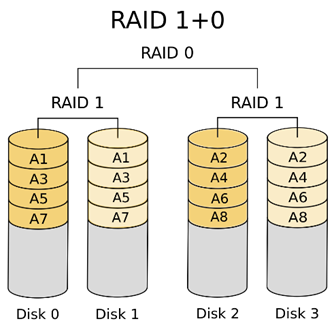
RAID 10 (also written RAID 1+0) stripes data across mirrored pairs — RAID 0 speed layered on RAID 1 protection. The array survives one failure in every mirrored pair, and recovery is fast because data is copied from the surviving mirror instead of being recalculated from parity.
Minimum drives: 4
Maximum drives: no hard limit, but always an even number — drives work in mirrored pairs.
Best for: workloads with heavy random writes — production databases, virtualization hosts, high-traffic web servers.
Positives:
- The best performance of any redundant RAID level.
- Fast, low-risk recovery from a drive failure.
Negatives:
- Only 50% of total capacity is usable.
- Four-drive minimum makes it the most expensive entry point.
What is RAID 50? (Striped RAID 5 Groups)
RAID 50 (RAID 5+0) splits the drives into two or more RAID 5 groups and stripes data across those groups. Each group keeps its own parity, so the array tolerates one drive failure per group instead of one failure across the whole set. Because a rebuild only has to read the drives inside the affected group, it finishes far sooner than a rebuild on one giant RAID 5.
Minimum drives: 6 (two RAID 5 groups of three)
Maximum drives: no hard limit; drives are added a whole group at a time.
Best for: large general-purpose arrays on a controller with plenty of ports — file servers, media libraries, backup targets that still need decent write speed.
Positives:
- Better write performance and shorter rebuilds than a single wide RAID 5.
- Still capacity-efficient: only one drive per group goes to parity.
Negatives:
- Two failures inside the same group still destroy the array.
- Needs at least six drives and a controller that supports nested levels.
What is RAID 60? (Striped RAID 6 Groups)
RAID 60 (RAID 6+0) applies the same idea to double parity: several RAID 6 groups, striped together. Every group survives two drive failures, so a wide RAID 60 can lose several drives overall as long as no group loses three. It is the standard choice for very large arrays of high-capacity drives, where rebuild windows are measured in days.
Minimum drives: 8 (two RAID 6 groups of four)
Maximum drives: no hard limit; like RAID 50, expansion happens one group at a time.
Best for: bulk storage on 12–20 TB drives, archives and disk-based backup where losing the array is unacceptable.
Positives:
- Highest practical fault tolerance for large parity arrays.
- Shorter, less risky rebuilds than one enormous RAID 6.
Negatives:
- Two drives per group are spent on parity, so usable capacity drops quickly.
- Write penalty is the heaviest of the common levels.
Both nested levels are supported in our RAID calculator if you want to compare them against the classic levels before you buy drives.
RAID Types at a Glance
| Level | Min drives | Survives | Usable capacity | Speed (read / write) | Best for |
|---|---|---|---|---|---|
| RAID 0 | 2 | 0 failures | 100% | Fastest / fastest | Speed-only workloads, scratch space |
| RAID 1 | 2 | 1 drive | 50% | Fast / moderate | Boot volumes, small file shares |
| RAID 5 | 3 | 1 drive | All drives minus one | Fast / moderate (parity penalty) | Balanced general-purpose servers |
| RAID 6 | 4 | 2 drives | All drives minus two | Fast / slower | Large arrays, critical data |
| RAID 10 | 4 | 1 per mirrored pair | 50% | Fastest of the redundant levels | Databases, virtualization |
| RAID 50 | 6 | 1 drive per RAID 5 group | All drives minus one per group | Fast / better than RAID 5 at scale | Large file servers, media libraries |
| RAID 60 | 8 | 2 drives per RAID 6 group | All drives minus two per group | Fast / slowest | Bulk archives on high-capacity drives |
Hardware RAID vs Software RAID
Hardware RAID runs the array on a dedicated controller card with its own processor and cache; software RAID builds the same array in the operating system using the host CPU. Both produce a working RAID array — the difference is where the parity math happens, what has to be replaced when the hardware around the disks fails, and what write performance looks like under load.
A hardware RAID card (Dell PERC, HPE Smart Array, LSI/Broadcom MegaRAID) presents the finished volume to the operating system, so the OS never sees the individual disks. Enterprise controllers add battery- or capacitor-backed write cache, which is what makes parity levels usable for databases and virtualization: writes are acknowledged from cache instead of waiting on the slowest disk, and the cache survives a power cut. The catch is that the array configuration lives with the controller family — replacing a failed card usually means fitting a compatible RAID controller and importing the foreign configuration from the drives.
Software RAID (Linux mdadm, ZFS, Windows Storage Spaces) needs no extra hardware and moves with the disks: pull the drives into another machine and the array can be reassembled there. Modern CPUs handle parity easily, so raw throughput is rarely the problem — the missing piece is protected write cache, which is why software arrays lean on journaling, an SSD cache device or a UPS instead. ZFS and Ceph go further and expect direct access to the raw disks, so give them an HBA or a controller flashed to IT mode rather than a RAID card running in RAID mode.
Motherboard or chipset RAID (often labeled “firmware RAID” or fakeraid) sits between the two: the option ROM sets the array up, but the driver still does the work on the host CPU, without cache or battery. Treat it as software RAID with a proprietary on-disk format.
RAID vs JBOD
JBOD (Just a Bunch Of Disks) is the opposite of a RAID array: every drive is presented separately, with no striping, no mirroring and no parity. It is the right mode when a storage layer above — ZFS, TrueNAS, Ceph, Storage Spaces — wants to manage redundancy itself, and the wrong mode when you expect the disks alone to protect your data. Most controllers can be switched between RAID and JBOD/HBA modes; check the mode before you build the array, because changing it later normally means wiping the disks.
Choosing the Optimal RAID Level
The optimal RAID level depends on what you’re optimizing for:
- Pure speed: RAID 0 — only when losing the data is acceptable.
- Maximum performance with protection: RAID 10 — the standard for databases and virtualization.
- Balance of capacity and redundancy: RAID 5 — and step up to RAID 6 once the array uses many high-capacity drives, where long rebuilds make a second failure a real risk.
- Very large arrays: RAID 50 or RAID 60 — nesting keeps rebuild windows short once you are past eight or ten drives.
- Cost: more redundancy always means more drives for the same usable space.
Ready to size a real array? Our free RAID calculator shows usable capacity, IOPS, rebuild time and failure risk for any drive combination — and the RAID controller you pick decides which levels are available to you in the first place.
RAID on a Workstation vs RAID in a Server
Everything above assumes a server with a dedicated controller and a backplane full of drives. A workstation is a different problem: two to four bays, no hot-swap on most chassis, and a user who needs the machine back today rather than after a twelve-hour rebuild. The levels do not change, but which one makes sense does.
- Scratch and cache volumes — RAID 0. Video editing scratch, simulation temp files, render caches: data that is regenerated rather than archived. Two NVMe drives striped give you the throughput a single drive cannot, and the risk is acceptable precisely because nothing there is the only copy.
- Working projects — RAID 1. The pragmatic default on a workstation: a mirrored pair keeps you working through a drive failure with no rebuild arithmetic and no parity write penalty. Capacity cost is half the raw space, which on a two-drive machine is the honest price of not losing a week of work.
- Local media libraries — RAID 5, cautiously. Worth it only in a four-bay chassis and only with enterprise drives; on large consumer disks the rebuild window is long enough that a second failure stops being theoretical.
- No RAID at all. A single NVMe drive plus a real backup beats a mirrored pair with no backup. RAID protects against a drive dying, not against deleting the wrong folder — that distinction matters more on a desktop than in a rack.
Workstation RAID is usually built on the chipset (Intel RST, or VROC for NVMe on Xeon W platforms) rather than on a card, which means it is firmware-assisted software RAID: fine for mirroring and striping, weaker for parity. If you want a proper controller with cache and battery backup in a tower, that is a RAID card decision, and the hardware-versus-software comparison above applies unchanged.
RAID FAQ
What is a RAID array?
A RAID array is several physical drives combined into one logical volume that the operating system treats as a single disk. Depending on the RAID level chosen, the array spreads data across the drives for speed, duplicates it for protection, or stores parity so it can rebuild a failed drive. The array can be created by a hardware controller or by the operating system.
Is RAID a backup?
No — RAID is not a backup. RAID protects you from drive failure, not from accidental deletion, ransomware, file corruption, a failed controller, theft or fire. Anything written to the array is written to every drive in it at once, and the whole array lives in one machine. Treat RAID as an uptime tool and keep separate backups, ideally with one copy off-site, of anything you can’t lose.
Which RAID level is best for redundancy?
RAID 6 gives the best redundancy for a large array, because it survives two simultaneous drive failures, including a second failure during a rebuild. For very large arrays RAID 60 extends that to two failures in each parity group. RAID 1 and RAID 10 also survive a drive failure and rebuild fastest, but they spend half of the total capacity on mirroring.
What RAID level is fastest?
RAID 0 is the fastest RAID level, because data is striped across every drive with no parity or mirroring overhead — and no protection whatsoever. Among the levels that survive a drive failure, RAID 10 is the fastest, especially for random writes, since it never has to calculate parity.
How many drives do I need for RAID 5 or RAID 10?
RAID 5 needs a minimum of three drives and RAID 10 needs a minimum of four. RAID 1 and RAID 0 start at two drives, RAID 6 at four, RAID 50 at six and RAID 60 at eight. Use identical drives inside an array and add capacity in whole groups for the nested levels.
What is the difference between hardware and software RAID?
Hardware RAID runs the array on a dedicated controller card with its own processor and, on enterprise models, battery-backed write cache, so the operating system only ever sees the finished volume. Software RAID builds the array in the operating system using the host CPU, with no extra hardware and no protected cache. Hardware RAID usually wins on write-heavy parity workloads; software RAID wins on portability and cost, and is required by ZFS-style storage that wants raw disks.
Which drives should I use in a RAID array?
Use identical drives within an array — same capacity, speed and ideally model — and prefer enterprise drives rated for continuous operation. Mixing sizes wastes space, because the array uses the smallest drive as the baseline. We stock tested enterprise hard drives and SSDs in matched batches, supply full storage kits, and every refurbished server we sell can be configured with the controller and drives already installed.
Do I need RAID on a workstation?
Only for a specific reason. A mirror (RAID 1) is worth it when losing a day’s work is expensive and the machine has two bays to spare; a stripe (RAID 0) is worth it for scratch and cache volumes that are regenerated anyway. For everything else on a desktop, a single fast NVMe drive plus a real backup gives you more protection than RAID does — an array survives a dead drive, not a deleted folder.
Conclusion
RAID gives you a range of ways to trade capacity, speed and protection against drive failure. Understand the RAID types above, decide whether the array belongs on a RAID controller card or in software, run your numbers through the calculator, and pick the level that matches your workload — then back up regularly anyway, because RAID alone is not a backup strategy.